
Email Gateway
Cortex clients will be required to set up their own Sendgrid accounts in future, to ensure deliverability of triggered emails sent from the Cortex platform remains high, and to provide greater ability to support customer requests and triage issues. This is a straightforward task for any IT team, requires no development, and will have no impact on emails sent from the Cortex platform nor any down time. Cortex expects to deprecate the current Cortex Sendgrid account by 30th April 2026, by which time client owned accounts will need to be set up.
The Email Gateway is the Cortex service that sends all platform-triggered email (account verification, password reset, MFA, junior/guardian consent, and so on) and records delivery events sent back by the provider. Internally, other Cortex services call the gateway over gRPC. Outbound mail goes via a provider you configure per client: currently SendGrid. SendGrid then posts delivery and engagement events back to the gateway over a webhook.
To put a new client on the gateway you need three things:
- A SendGrid account with an authenticated sending domain.
- A SendGrid API key.
- A webhook URL pointing at the gateway, secured by a client-specific secret.
SendGrid Setup
-
Create or reuse a SendGrid account. Under Settings > API Keys, note the key you plan to use for Cortex. It needs at minimum the Mail Send permission.
-
Authenticate the sending domain from Settings > Sender Authentication > Domain Authentication. Use a subdomain (
auth.clubname.com,myaccount.clubname.com) rather than the client's primary domain to protect the primary domain's reputation. -
Configure the from-address you want Cortex emails to come from (for example
[email protected]). It must be under the authenticated domain. -
Configure the Event Webhook under Settings > Mail Settings > Event Webhook. The URL is:
https://email-gateway.cortextech.io/v1/sendgrid/email-events/upload?clientId=<CLIENT_ID>&secret=<WEBHOOK_SECRET>CLIENT_IDis the Cortex client ID.WEBHOOK_SECRETis any unique value you generate (a UUID is fine). The gateway uses it to verify the webhook is legitimate, so keep it secret and don't reuse it across clients.
Enable these events: Processed, Delivered, Dropped, Deferred, Bounced, Opened, Clicked, Spam Reports. The gateway ignores event types it doesn't recognise.
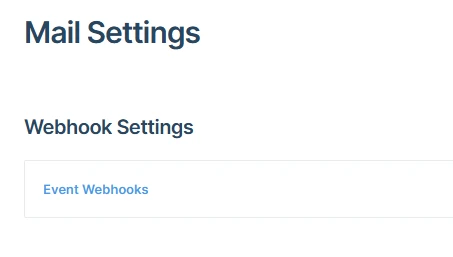
Configure Cortex
- In Fan Manager go to Administration > Integrations > SendGrid.
- Paste the SendGrid API key.
- Paste the same
WEBHOOK_SECRETyou used when configuring the webhook in SendGrid. - Save.
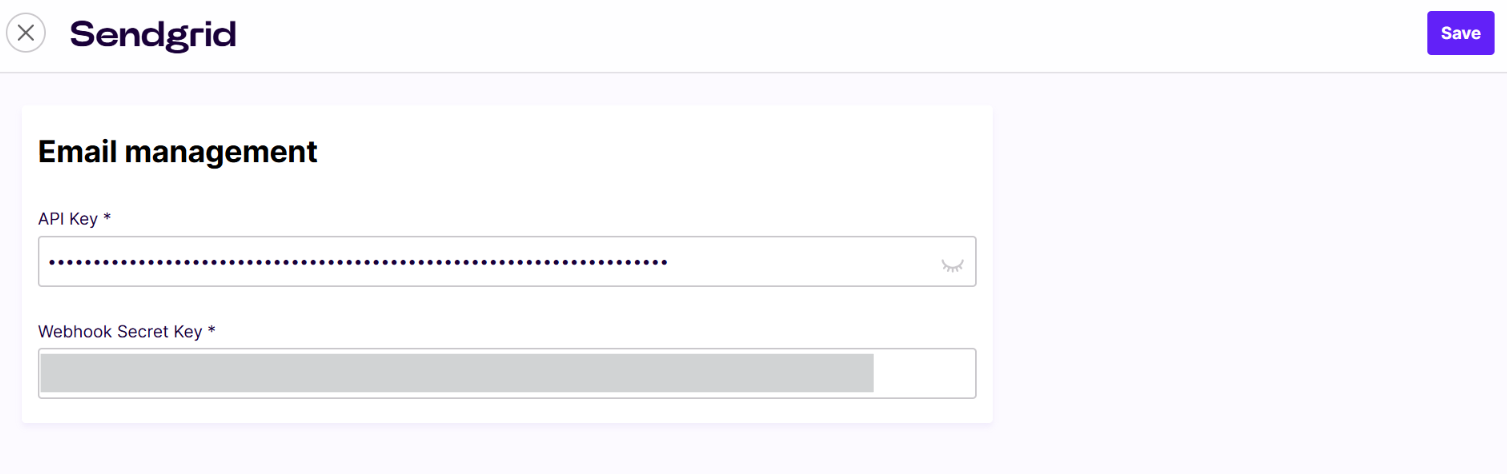
To verify the configuration took effect, trigger a password-reset email. Within a few minutes, the message should appear in Fan Manager > Email Logs with a status that progresses through processed to delivered. If the status stays blank, the webhook is not reaching the gateway; see Troubleshooting below.
Auth Emails to Test
Before sign-off, exercise each flow end-to-end and confirm the email lands:
- Account verification
- Password reset
- Account locked
- Junior registration and guardian consent
- MFA (code and link variants)
Delivery and Engagement Events
SendGrid posts two classes of events:
- Delivery events (
processed,delivered,dropped,deferred,bounce) update the email's status in Fan Manager. - Engagement events (
open,click,spamreport) are stored against the email record but do not change its delivery status.
This is why an email can show delivered even though the fan says they never opened it: delivered means SendGrid handed it to the recipient's mail server, not that the fan read it.
Troubleshooting
Email not arriving at all
Check, in order:
- Fan Manager Email Logs: is there a record of the send? If not, Cortex never called the gateway, look at the triggering service (auth, MFA, etc.).
- The log entry's status:
droppedorbouncemeans SendGrid rejected the recipient.processedwith no follow-up event usually means the webhook is misconfigured. - The recipient's junk/spam folder and that their address is correct.
- SendGrid's own Activity feed and Suppressions list for global bounce, block, or spam-report entries against that address.
- That the sending domain is still authenticated in SendGrid (DNS records can drift).
Email delayed
- Compare the send timestamp in Email Logs to when the fan expected it. Small delays (under a minute) are normal.
- Check SendGrid Activity for deferrals. Repeated
deferredevents usually mean the recipient's provider is throttling or greylisting. - Confirm the right template is mapped for the flow (verification vs reset) and that the client environment (stage vs production) points at the correct template set.
Link or code in the email doesn't work
- Most auth links and codes have a short expiry. Check the service's configured expiry window.
- Confirm the fan is using the most recent email. Older verification or reset links are invalidated when a new one is issued.
- Trigger a fresh email from Fan Manager and have the fan retry.
Updated 6 months ago