
Bulk Suspend Fans
The Bulk Suspend/Unsuspend feature empowers Cortex users to efficiently manage large groups of fans, specifically aiding in the rapid banning of ticket touts and bad actors. Instead of managing accounts individually, this service allows you to input a list of identified fan IDs to be processed all at once.
This guide provides instructions on how to use the Bulk Suspend feature within the Cortex Platform to manage multiple fan accounts simultaneously.
Required Permissions
To access and use this feature, your Cortex User account must be assigned the Bulk Suspend/Unsuspend Role Group. This group includes the following specific roles:
- BULKSUSPENSIONREAD
- BULKSUSPENSIONCREATE
- BULKSUSPENSIONUPDATE
- BULKSUSPENSIONDELETE
Note: Access is restricted to a small group of users due to the critical nature of these actions. Contact your Cortex support email to request access.
How to Access Bulk Suspension
Log in to the Cortex Platform.
Select 'Fan Manager' from the main navigation menu.
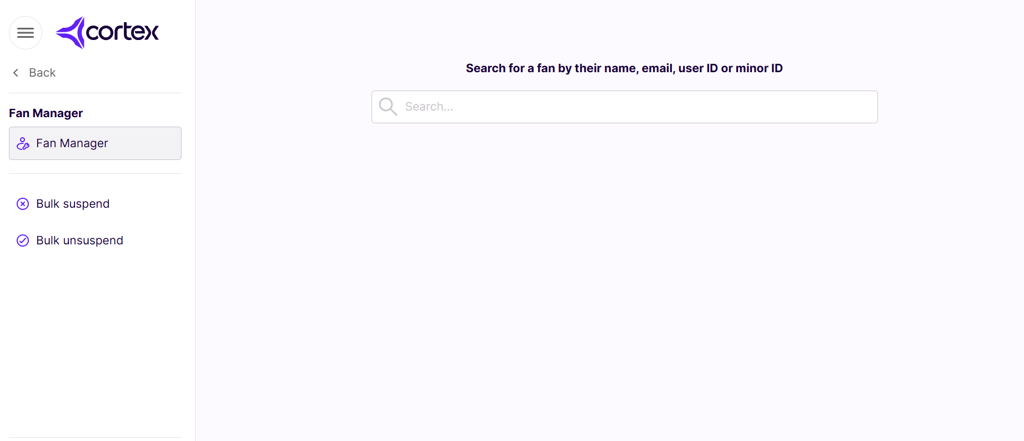
A side tab will appear with new options:
- Bulk Suspend
- Bulk Unsuspend
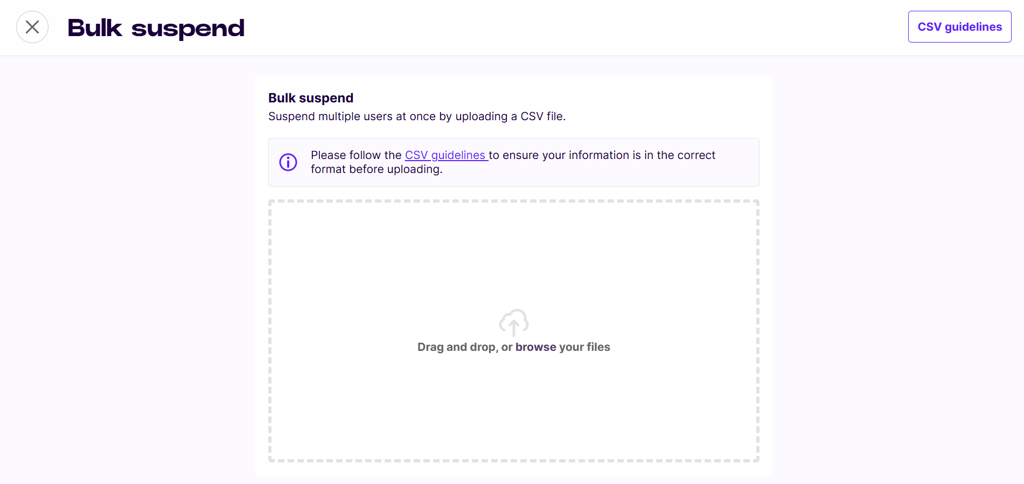
Select the specific action required to load the CSV upload screen.
Step-by-Step Instructions
Step 1: Prepare Your CSV File Organise your data into a .csv file using tools like Excel or Google Sheets. Your file must include at least one of the following for every row to match users in the system:
- Email Address
- authId (User ID)
- Reason (Optional)
- Action (Optional)
General Guidelines:
- At least one of authId or email must be provided per row.
- Text values are limited to 255 characters.
- The file must have a .csv extension.
Step 2: Upload to Cortex On the Bulk Suspend screen, you can drag and drop your file or browse your computer to upload it.
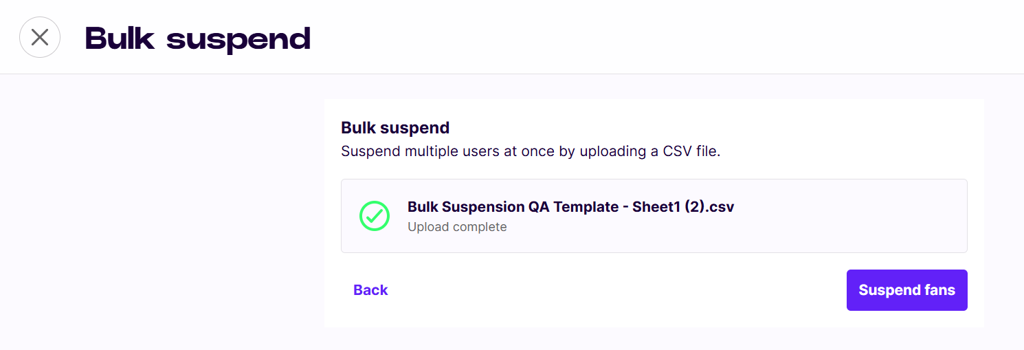
Step 3: Map Your Data The mapping interface allows you to match your CSV columns with the expected fields in Cortex.
- Review the columns to ensure backend services correctly identify the users.
- Any mismatched headings can be corrected directly within this interface.
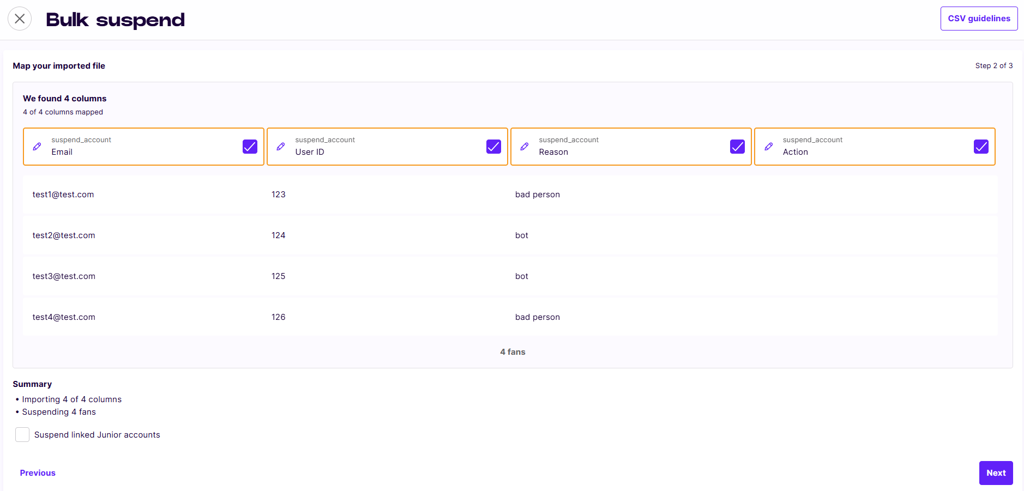
Step 4: Review Summary & Initiate A summary will appear showing the total number of columns and fans impacted.
IMPORTANT!
Suspend linked Junior accounts If you check this box, any Junior accounts associated by email with a suspended Guardian account will also be suspended.
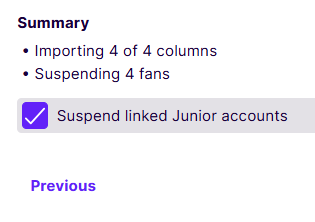
Click 'Suspend fans' to proceed.
Step 5: Final Confirmation To prevent accidental bulk actions, a final security prompt will appear.
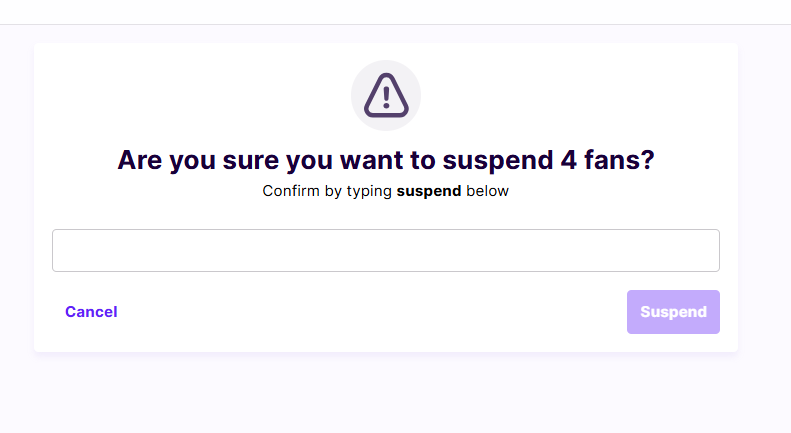
You must manually type the word "suspend" into the text field to confirm you are fully aware of the action.
Click the confirmation button to complete the process.
Frequently Asked Questions (FAQ)
What if a user is already suspended/unsuspended?
They will be skipped and will remain in their current state.
What if an email does not exist in the SSO system?
The file will process, but the system will report an error for that specific row.
How many users can be in one file?
Up to 5,000 rows process almost immediately. It is not recommended to exceed 10,000 users per file as it will slow the system.
Who should have access to this?
Only a small group of authorised users. Contact Cortex support for access requests.
Updated 2 days ago
If you need to BULK UNSUSPEND users, please see the 'Bulk Unsuspend Fans' page